Video files come in many formats, and each one relies on specific instructions to display correctly. When you move a recording from a phone or camera to your computer, the built-in player may or may not recognize it. Sometimes the video opens without issue. Other times, the format is not supported by the tools already installed.
Pre-installed players cover the basics. They handle common file types and everyday viewing. For newer or higher-resolution content, though, they often need additional components that are not included by default. A dedicated media player takes a different approach by including a wider range of decoders from the start.
This guide looks at how format compatibility works, why certain files need specific decoding, and how a media player can manage high-resolution content along with detailed audio and subtitle settings.
Why Some Files Do Not Open in Default Players
Modern cameras and smartphones frequently record in high-efficiency formats such as HEVC (H.265). These formats reduce file size while keeping visual quality high. To play them, a device needs the matching decoder.
Default players on many systems do not include every decoder automatically. In some cases, you are prompted to add an extension separately before certain files will play. Without the right component, a video might open with no sound, show a blank screen, or fail to start. A dedicated player addresses this by building the necessary decoders directly into the application, so common formats work without extra steps.
A Wider Range of Supported Formats
One reason people look at alternative players is built-in compatibility. Instead of searching for separate codec packs or converting files first, you can open most media directly.
A capable player generally recognizes:
Current video codecs such as HEVC (H.265), H.264, and VP9
Common containers including MP4, MKV, AVI, MOV, WMV, and FLV
Audio formats like FLAC, MP3, AAC, and OGG
DVD and standard disc formats
This coverage means fewer interruptions when you switch between different types of files.
Media formats, hardware acceleration, audio, and subtitle controls.
Handling 4K and 8K Content Smoothly
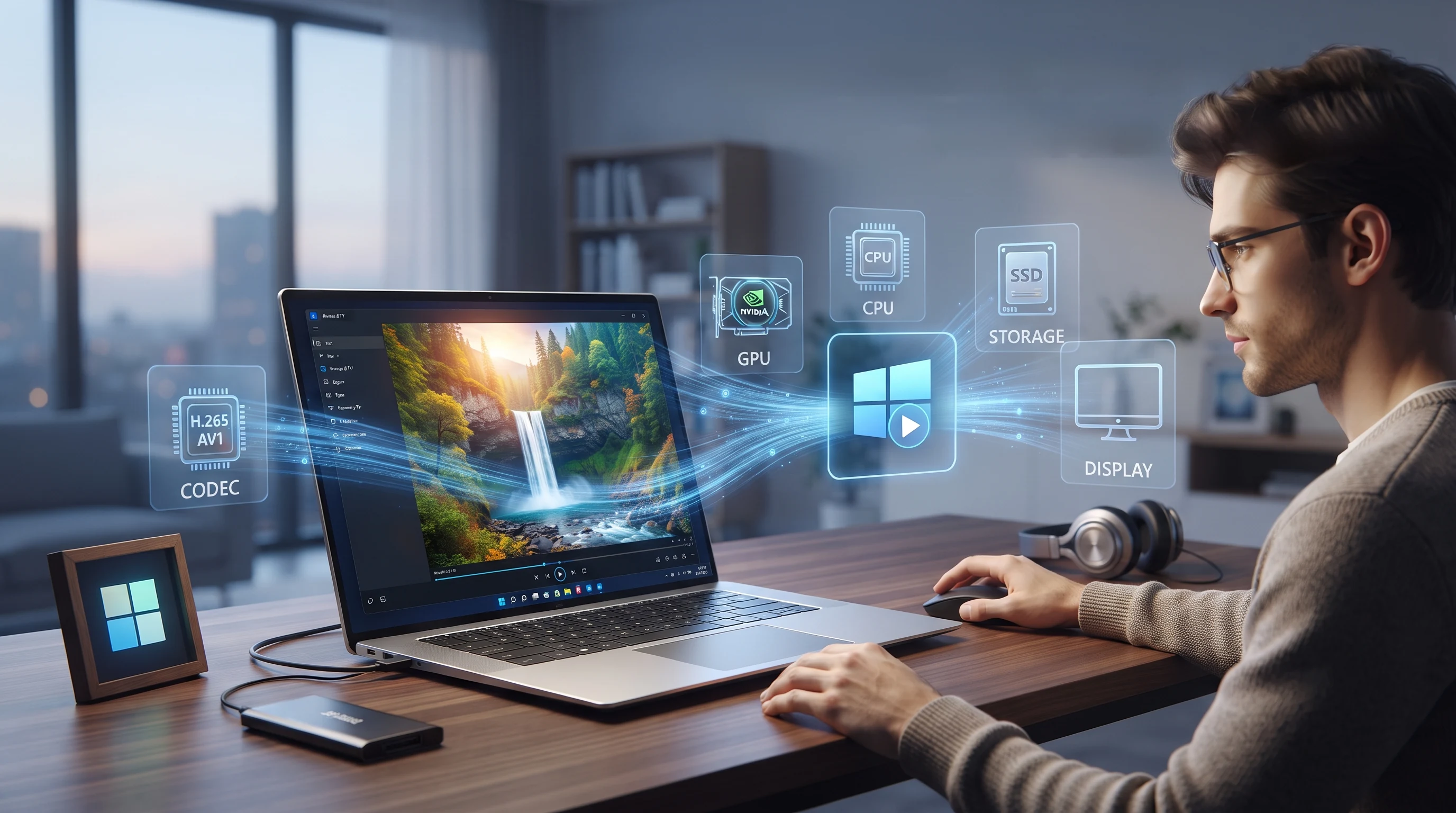
Ultra HD video, including 4K and 8K, involves a large amount of data. Decoding this content places a heavy load on a computer. When a player depends only on the central processor (CPU), playback can stutter or drop frames.
Many advanced players use hardware acceleration. This method moves part of the decoding work to the graphics processing unit (GPU). By sharing the workload between the CPU and GPU, the player can keep high-framerate video steady while the system stays responsive. This is especially useful on computers that would otherwise struggle with demanding files.
Adjusting Audio and Subtitles
A clear viewing experience depends on the picture, sound, and text staying in sync. A detailed player gives you control over each of these elements.
For subtitles, you can load several formats, such as SRT or ASS, and shift their timing if they do not line up with the audio. You can also change the font size, color, and position to suit your reading preference.
For audio, built-in equalizers let you adjust the balance of sound. This can help make dialogue easier to follow or keep volume levels more consistent across quieter and louder scenes.
Where KMPlayer Fits In
For people who want a single application that handles a broad range of media, KMPlayer is a practical option.
KMPlayer combines a straightforward interface with an internal library of decoders. It is built to open everything from standard MP4 files to more demanding 8K and 3D content directly, which reduces the extra steps often involved in PC video playback.
Whether you are reviewing recorded lessons, organizing a personal video collection, or watching a film, KMPlayer offers a stable and consistent environment for your media.
Common Questions About Video Playback
Why does my computer say a video format is not supported? This usually means the current player does not include the decoder needed for that file. A dedicated player often resolves this by carrying a broad codec library within the application itself.
Do I need to add extra components to play HEVC files? Some default players ask you to install a separate extension for formats like HEVC. KMPlayer includes these decoders as part of the application, so those files typically open without additional setup.
Will a media player put extra strain on an older computer? Players that use hardware acceleration distribute the workload between the CPU and GPU. This can make playback more efficient and reduce the load compared with relying on the processor alone.
Can I change the playback speed? Yes. You can speed up or slow down a video, which is helpful when reviewing recorded lectures, tutorials, or detailed presentations.
What KMPlayer brings to everyday playback
The supplied article highlights practical areas that can reduce friction when opening and watching media files.
Built-in format support
A broad decoder library helps common video and audio files open without separate codec searches.
High-resolution playback
Hardware acceleration can share decoding work between the CPU and GPU for demanding video.
Detailed viewing controls
Audio, subtitle, and playback-speed settings let viewers tailor the experience to the file.
Subtitle and audio tuning
Subtitle formats such as SRT or ASS can be timed and restyled, while an equalizer helps balance dialogue against louder scenes.
Broad container support
Files wrapped as MP4, MKV, AVI, MOV, WMV, or FLV can be opened directly, without converting the file first.
What viewers are reporting
Generic impressions gathered around everyday desktop playback with a dedicated player.
★★★★★
Files that used to open without sound now play the way they should, and I no longer hunt for separate codec packs before watching a clip. Having the decoders inside the app removed most of the guesswork.
A desktop viewer, home setup
★★★★★
High-resolution clips look steadier once the GPU shares the decoding, and the rest of the machine stays responsive.
A 4K hobbyist
★★★★★
Subtitle timing was easy to nudge back into place, and the font size controls made a difference on a large screen.
A subtitle user
★★★★★
MKV and MOV files from the camera opened right away, so I could review footage without a conversion step.
A camera owner
★★★★★
The playback-speed control was handy for stepping through a recording without missing detail.
A note-taker
Review KMPlayer for your media setup
A short path from the offer page to testing your own files.
1
Open the official page
Use the button on this page to visit the KMPlayer offer supplied in the spreadsheet.
2
Review format support
Check that the formats and resolutions you use are covered by the current product information.
3
Download the application
Choose the appropriate Windows download from the official page and follow the installer prompts.
4
Test your own files
Open a familiar video and review the hardware, subtitle, audio, and speed settings that matter to you.
Voices from the screening room
Notes from people watching everyday and high-resolution media on the desktop.
“
Opening a phone recording used to be a gamble. Now it plays on the first try, and the picture holds together even on the demanding clips.
Liam Henderson“
The equalizer made quiet dialogue easier to follow without blasting the loud scenes.
Amara Okafor“
I stopped installing codec packs. The formats I use simply opened.
Marcus Vance“
Nudging the subtitle timing back into sync took seconds, not a search through menus.
Elena Rostova
Compare the Free and Pro experience
Capability differences based on the product information, including typical pricing.
Common questions about formats, decoders, and playback controls.
Why does my computer say a video format is not supported?
The current player may not include the decoder required by that file. A player with a broader internal codec library can often open it directly.
Do HEVC files always need an extra component?
Some default players require a separate HEVC extension. The supplied article states that KMPlayer includes decoders for common modern formats.
Can hardware acceleration help an older computer?
It can distribute decoding work between the CPU and GPU, which may make demanding playback more efficient.
Can I change playback speed and subtitle timing?
Yes. The supplied KMPlayer copy describes controls for playback speed and subtitle synchronization.
Which containers and audio formats are covered?
Containers such as MP4, MKV, AVI, MOV, WMV, and FLV are recognized, along with audio formats including FLAC, MP3, AAC, and OGG.
Do I still need a separate codec pack?
Built-in compatibility can remove the need to search for separate codec packs or convert a file before viewing it.
Looking for a straightforward way to play a wide range of media on your Windows PC?
KMPlayer supports modern formats and uses hardware acceleration for smooth high-resolution playback. Get KMPlayer and set it up on your computer to enjoy clear, consistent video performance.
This page is a paid advertorial brought to you by elevacores.com. It is intended for promotional purposes only and should not be considered independent journalism, editorial content, or consumer advice. The content has been created or curated by the advertiser and may include affiliate links. We may receive compensation if you choose to purchase a featured product or service via the links provided. Please refer to our Advertising Disclaimer and Privacy Policy for more information.